Your products
Create a product, its photos, its variants, its stock and its price, then publish it.
A product holds everything your customer will see: photos, a description, a price, a stock, and sizes or colours if you need them. Until it is published it stays a draft only you can see.
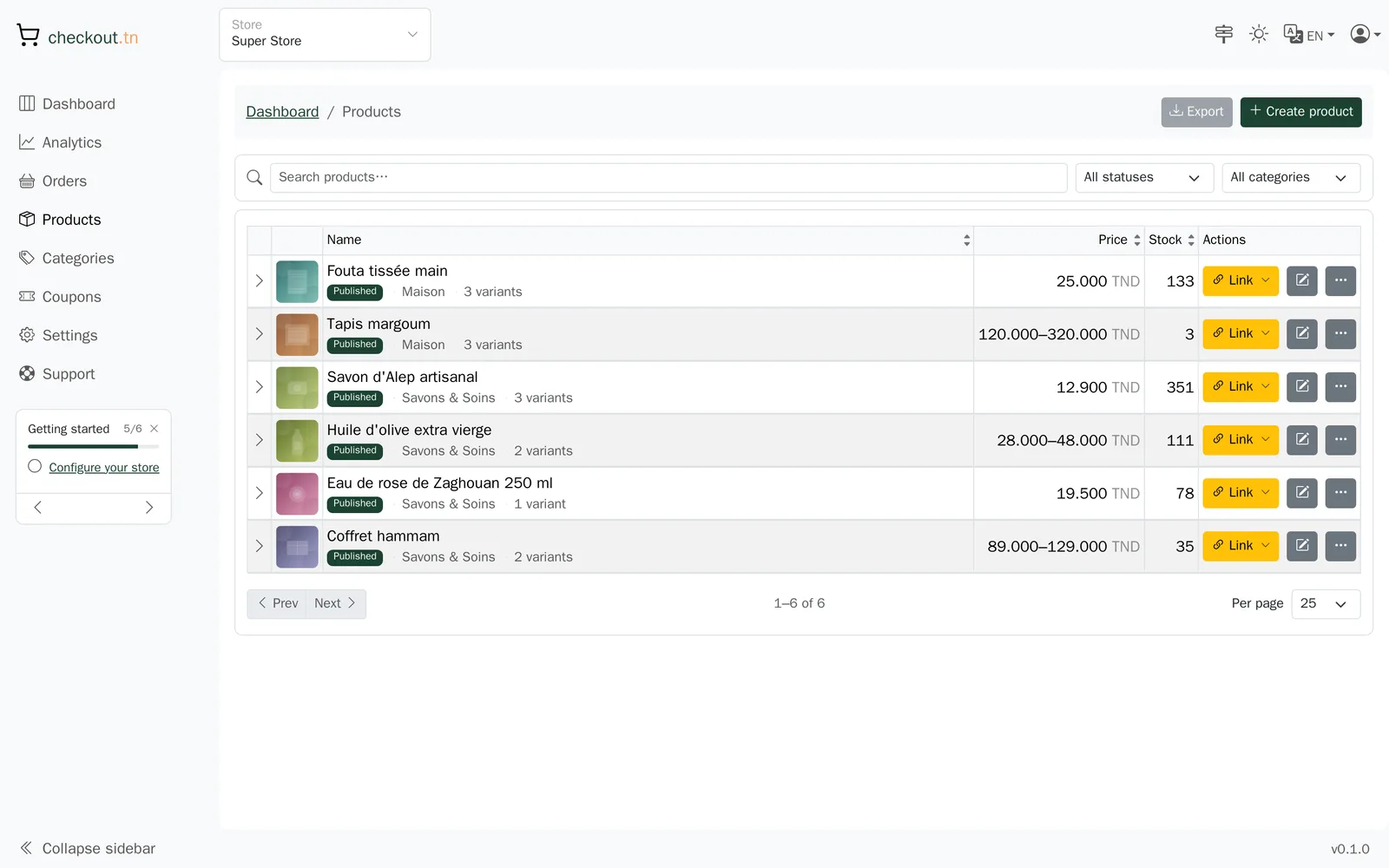
Create a product#
Where to go:DashboardProductsCreate a product
- Open Products, then “Create a product”.
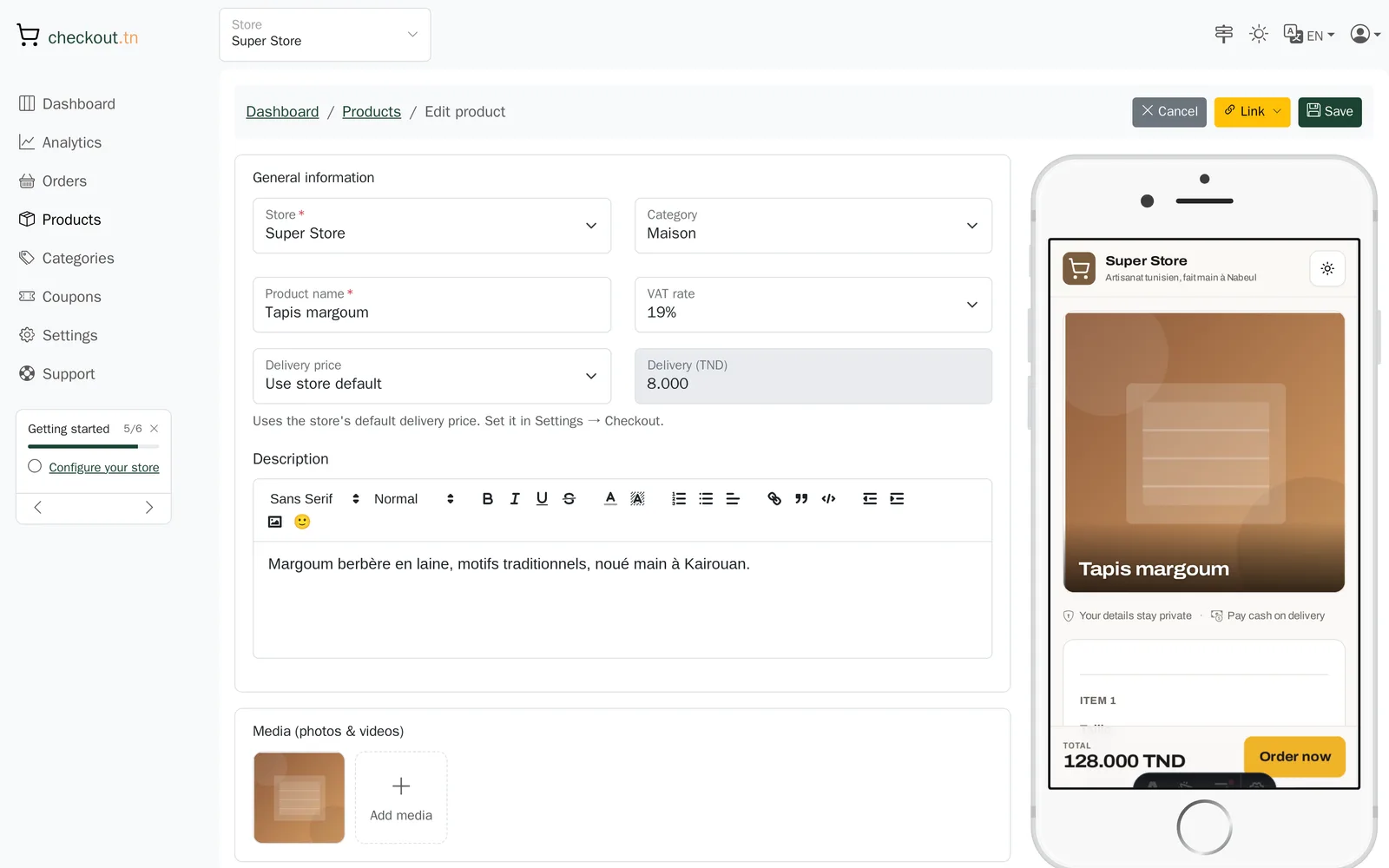
- Give it a clear name, the one your customer will recognise on their order.
- Write the description: material, size, delay, anything that saves a question in a private message.
- Save. The product exists, and you can carry on filling it in.
Photos and videos#
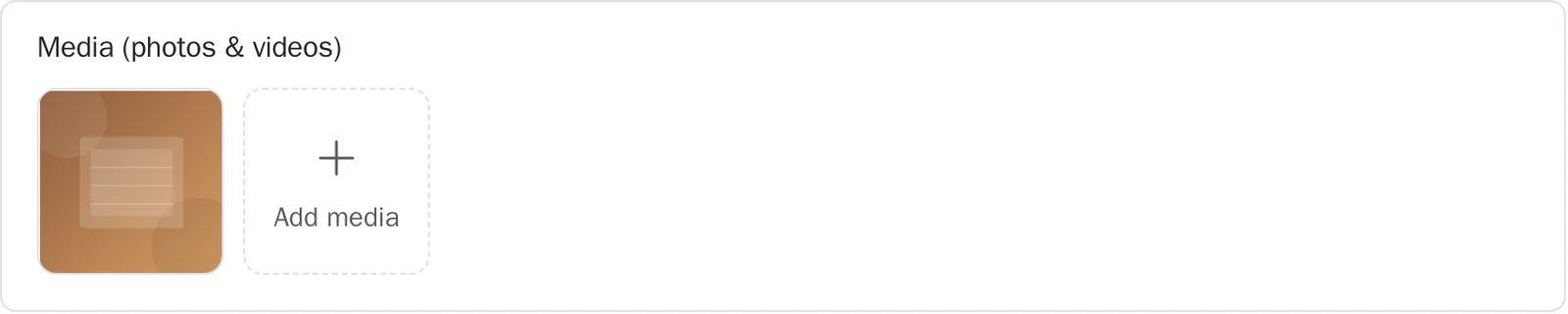
Where to go:DashboardProductsyour productMedia (photos & videos)
The first image becomes the thumbnail everywhere: in your list, on the shared link, at the top of the order page. Add several and your customer will swipe through them. Photos are cropped square as you add them.
Price, stock and minimum quantity#
Where to go:DashboardProductsyour productPricing & inventory
For a simple product, set a price and a stock. The stock goes down with every order and comes back on its own if an order is cancelled. At zero, the product can no longer be ordered.
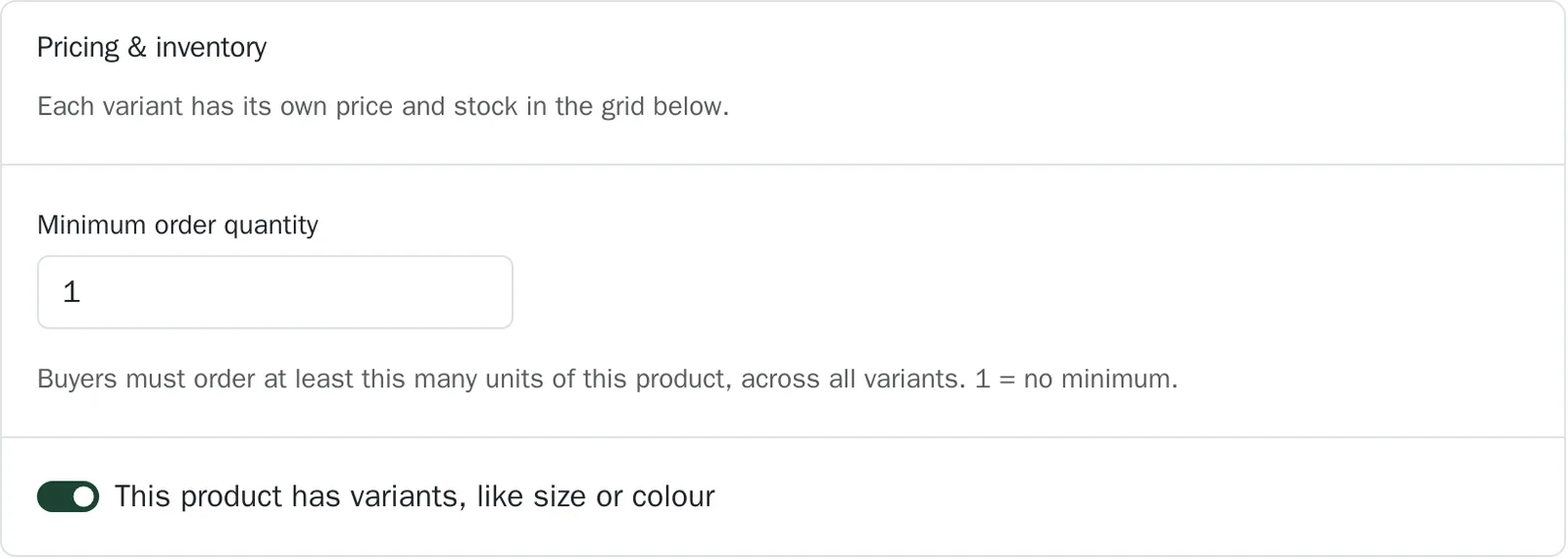
The minimum quantity per order is for selling in packs: set to 3, it makes your customer take at least 3, across all variants. Left at 1, it changes nothing.
Sizes, colours and other variants#
Where to go:DashboardProductsyour productPricing & inventoryThis product has variants
If your product comes in several versions, turn on “This product has variants”. You then describe your options, for instance Size with S, M and L, and Colour with Black and White. The grid generates itself: every combination has its own price and stock.
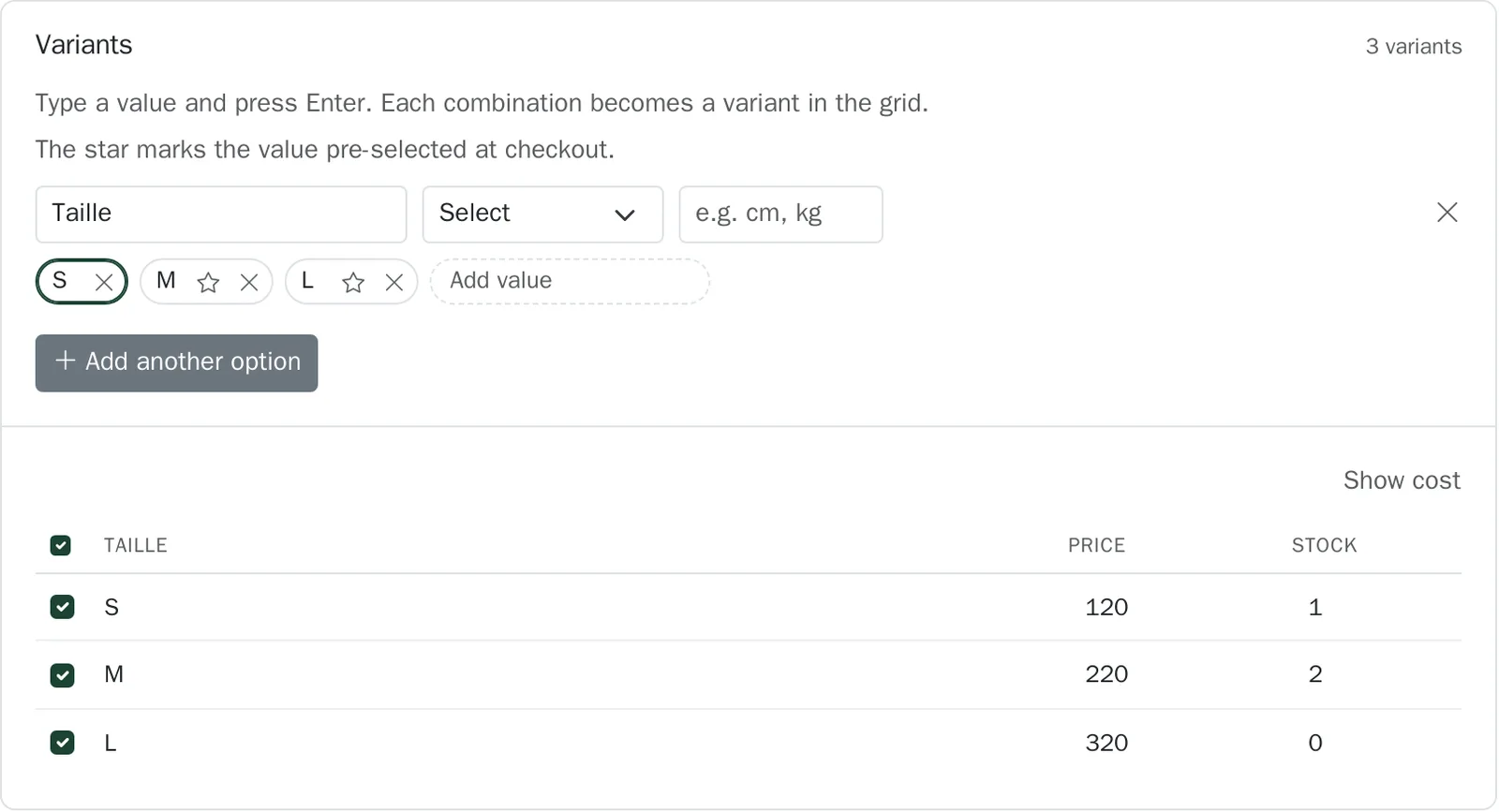
The buttons above the grid set a price or a stock on every row at once, and then you adjust the exceptions.
A sold-out variant blocks itself on the order page. Remember to put the stock back after a restock, or your customers see “out of stock” while the goods are on your shelf.
Categories#
Where to go:DashboardCategories
Categories tidy your catalogue on the dashboard side. They help you find your products once there are dozens of them; your customers always arrive through one product's link.
Publishing#
Where to go:DashboardProductsLinkPublish
A published product gets its order link. Publish from the product list or from the editor, with the button that shows the link. A product needs at least a price before it can be published.
Can't find your answer?
Write to us from your dashboard, under Support. A real person answers.
Create my store