Your team
Invite an employee and give them exactly the access they need.
A store that is working is not run alone. You can invite your team and decide, area by area, what each person sees and can change.
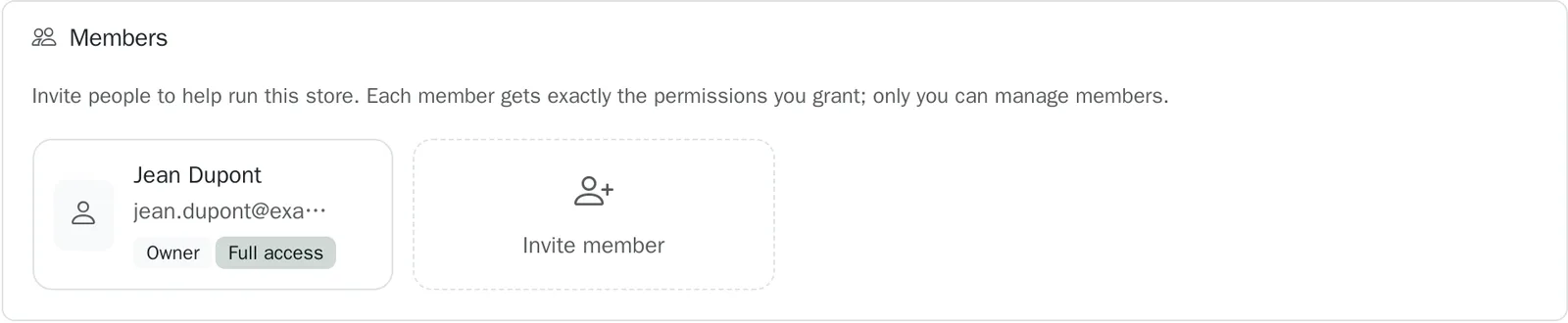
Inviting someone#
Where to go:DashboardSettingsyour storeMembers
- Open Settings, your store, then the Members card.
- Enter the person's email address.
- Choose a ready-made role, then adjust it if you need to.
- Send the invitation: they receive a link valid for fourteen days.
The person you invite does not need an account beforehand. They sign up for free, then find your store in their dashboard.
The three roles#
| Role | For whom | What they can do |
|---|---|---|
| Order management | The person who packs and delivers | See and move orders on, cancel. |
| Stock management | The person who keeps the catalogue | Create and edit products, keep the stock. |
| Marketing | The person who runs the offers | Coupons, analytics, store settings. |
A role is only a starting point: each area is then set separately, as read or as write.
What stays with the owner#
Managing members and deleting the store stay with the owner, whatever role the others are given. An employee who leaves is removed in one click, and their access disappears at once.
Can't find your answer?
Write to us from your dashboard, under Support. A real person answers.
Create my store